Jump To:
- The Printer is Not Printing Tickets
- The Printer is Out of Paper and/or Not Feeding Paper
- Kiosks Displaying the Message “Network Disconnected”
- Kiosk Displaying the Message “This machine is taking a break”
- Kiosk Displaying Message “Shop Closed”
- KDS is not Populating Tickets
- Bump Bar is Not Working
The Printer is Not Printing Tickets
- Ensure both the power cable and the ethernet cable securely connected to the wall and the printer.
- Turn the printer off by pressing the power switch, wait 5 seconds, then turn the printer back on.
- If this does not resolve the issue, please print a configuration page.
- For further assistance, please refer to our comprehensive printer troubleshooting guide or contact our support team at (888)827-5055 or email onsitesupport@grubhub.com.
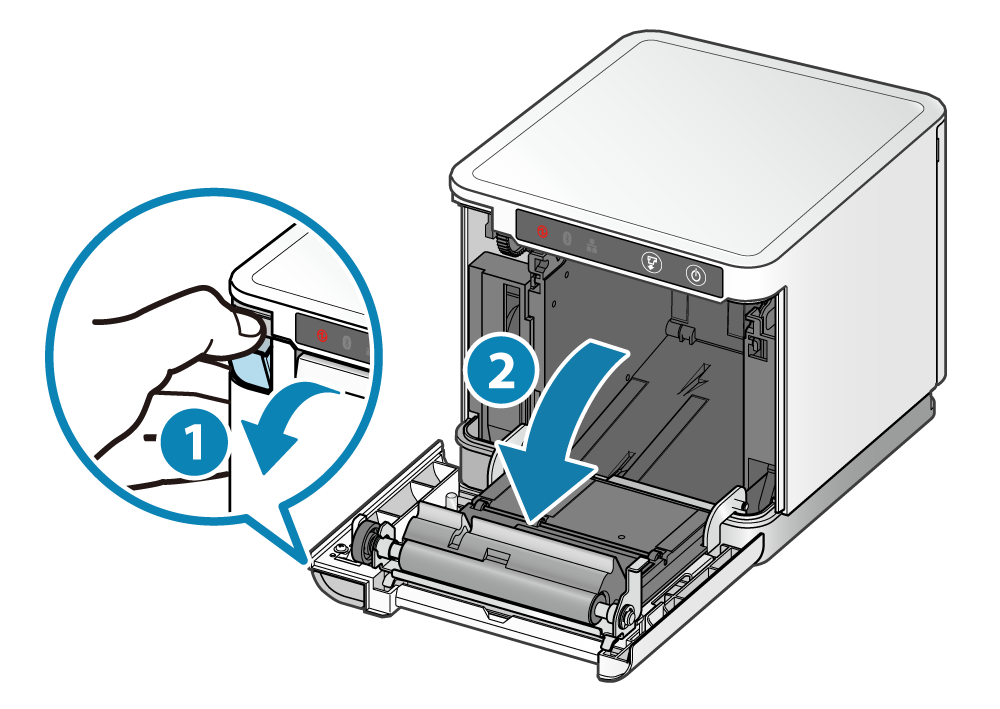
The Printer is Out of Paper and/or Not Feeding Paper:
- Turn off the printer.
- Press the open lever to open the printer cover.
- Gently push the roll into place until it is touching the lower black button. If the lower button is not depressed by the paper roll, the error light will flash.
- With the paper feed hanging out the front of the printer, close the cover by pushing it down onto the paper until it clicks.
- Turn the printer back on.
Receipts are Printing Out Blank:
- The paper may have been loaded in reverse. The thermal receipt paper will only print on one side.
- If the paper was loaded correctly, try reloading with a new roll of paper as the one being used may be non-reactive to the thermal heat.
- For further assistance, please refer to our comprehensive printer troubleshooting guide or contact our support team at (888)827-5055 or email onsitesupport@grubhub.com.
Kiosks Displaying “Network Disconnected” Error:
- Press the Home button and Power Button on the back of the Elo device to exit the kiosk app and to display the lock screen.
- On the lock screen, swipe up and enter the passcode. If you need this information, please contact our support team at (888)827-5055 or email onsitesupport@grubhub.com.
- On the home screen tap on the three horizontal bars on the top right corner of the screen.
- Tap and hold the Wifi logo.
- Ensure the kiosk is connected to the correct network

Kiosk Displaying the Message “This machine is taking a break”:
- Please contact our support team at (888) 827-5055 or email onsitesupport@grubhub.com
Kiosk Displaying Message “Shop Closed”:
- This message indicates the current time is outside of the shop’s set hours. Kiosks will not work outside of set shop hours.
- Please check in Oneview if hours are correct and refer to this guide to update the hours if needed.
- For further assistance, please contact our support team at (888)827-5055 or email onsitesupport@grubhub.com.
KDS Not Populating Tickets:
- Ensure that both the power cable and the ethernet cable are securely connected to the wall and the printer.
- Ensure that you are not currently viewing completed tickets or "Bumped" tickets and the title is showing "Preparing"
- Click Switch View on the Bump Bar to see recent orders
- If you’ve confirmed cables are secured and you’re in the correct view, reset your KDS.
- Resetting KDS:
- Press and hold the power button on the Chromebox until the screen goes black -> Wait 5 seconds -> Press and hold the power button again to turn on the device.
- Press and hold the power button on the Chromebox until the screen goes black -> Wait 5 seconds -> Press and hold the power button again to turn on the device.
- Resetting KDS:
Bump Bar is Not Working:
- Ensure the USB cable from the bump bar is plugged into the Chromebox.
- If the bump bar still isn't working, reset the bump bar by unplugging the bump bar's USB then plugging it back in.
- If you find damage to the USB cable or the bump bar experienced any liquid damage, please contact our support team at (888)827-5055 or email onsitesupport@grubhub.com for replacement assistance.
Please refer to this advanced KDS guide or contact support for further assistance.